How To Make Stickers On Snapchat
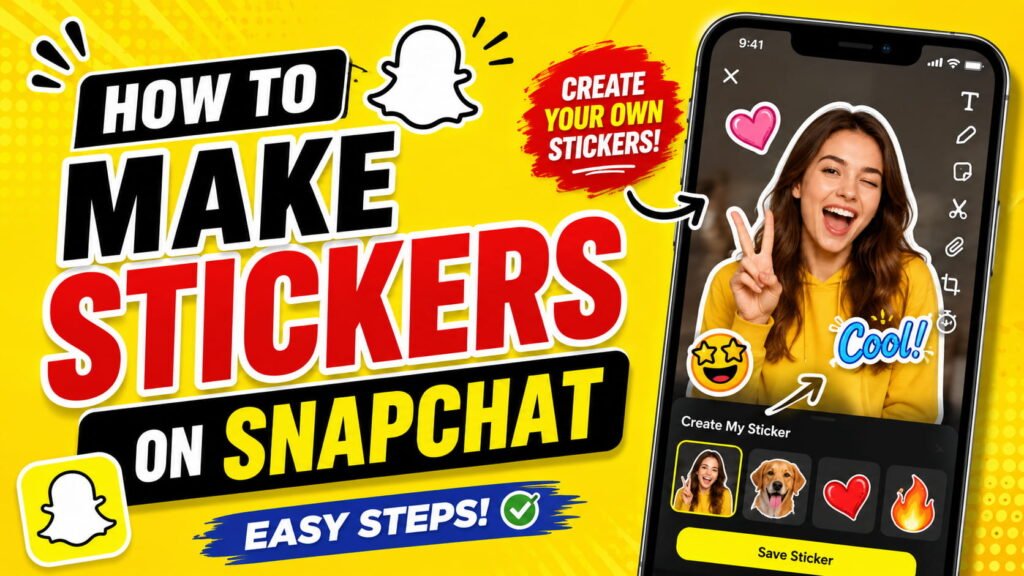
How to Make Stickers on Snapchat 🎨
Snapchat is full of fun features, and one of the most creative ones is custom stickers. How To Make Stickers On SnapchatI nstead of using only the built-in stickers, you can create your own from photos, selfies, or objects in your snaps.
If you’re wondering how to make stickers on Snapchat, you’ve come to the right place. This beginner-friendly guide will show you everything you need to know, from creating your first sticker to editing and using it in your Snaps and Chats.
Table of Contents 📚
- What Are Snapchat Stickers?
- Types of Stickers on Snapchat
- How to Make Stickers on Snapchat
- How to Create a Sticker from a Photo
- How to Make a Selfie Sticker
- How to Use Your Custom Stickers
- How to Edit or Delete Stickers
- Best Tips for Creating Amazing Stickers
- Common Problems and Fixes
- FAQs
- Conclusion
What Are Snapchat Stickers? 🤔
Snapchat stickers are fun images that you can place on your photos or videos. Besides Snapchat’s built-in sticker collection, you can create custom stickers using your own pictures.
For example, you can turn:
- 😀 Your face into a sticker
- 🐶 Your pet into a sticker
- 🍕 Your favorite food
- ❤️ A heart shape
- 🌸 Flowers
- 🎁 Gifts
- 📱 Objects from your photos
Once saved, you can use these stickers again anytime.
Types of Stickers on Snapchat 📱
Snapchat offers several kinds of stickers:
😀 Built-in Stickers
Ready-made stickers provided by Snapchat.
📍 Location Stickers
Show your current location.
⏰ Time Stickers
Display the current time.
🌦 Weather Stickers
Show local weather.
🎭 Bitmoji Stickers
Use your personalized Bitmoji in chats and snaps.
✂️ Custom Stickers
Create your own stickers from photos.
🤳 Selfie Stickers
Turn your selfie into a fun sticker.
How to Make Stickers on Snapchat ✂️
Follow these simple steps.
Step 1: Open Snapchat
Launch the Snapchat app on your Android or iPhone.
Make sure the app is updated to the latest version.
Step 2: Take a Photo 📸
Capture a new photo or video.
You can also use a picture from Memories if supported.
Step 3: Tap the Scissors Icon ✂️
After taking your Snap:
- Look at the editing tools.
- Tap the Scissors icon.
This opens Snapchat’s sticker creation tool.
Step 4: Outline the Object
Use your finger to carefully draw around the object you want to turn into a sticker.
For example:
- Your face
- A pet
- A flower
- A coffee mug
- Sunglasses
- A cute toy
Snapchat will automatically detect the object and create the sticker.
Step 5: Save the Sticker 💾
Once the sticker is created, Snapchat saves it automatically under your custom stickers collection.
You can use it anytime in future Snaps.
How to Make a Selfie Sticker 🤳
Selfie stickers are another fun option.
Step 1
Open Snapchat.
Step 2
Tap the Sticker icon.
Step 3
Select the Selfie Sticker option.
Step 4
Take a selfie.
Step 5
Choose an expression like:
- 😄 Happy
- 😂 Laughing
- 😎 Cool
- 😍 Love
- 😲 Surprised
Snapchat saves the selfie as a sticker.
How to Use Your Custom Stickers 🎉
After creating a sticker:
- Take a Snap.
- Tap the Sticker icon.
- Open the Custom Stickers section.
- Select your sticker.
- Drag it anywhere on the screen.
You can:
- Resize it
- Rotate it
- Duplicate it
- Add multiple stickers
How to Edit Sticker Size 📏
Use two fingers to:
- Pinch inward to make it smaller.
- Spread outward to make it larger.
- Rotate it in any direction.
This helps your sticker fit perfectly.
How to Delete a Custom Sticker 🗑️
Don’t need a sticker anymore?
Follow these steps:
- Open Snapchat.
- Tap the Sticker icon.
- Open Custom Stickers.
- Press and hold the sticker.
- Tap Delete.
The sticker will be removed from your collection.
Fun Ideas for Custom Stickers 💡
Create stickers from:
- 🐶 Your pet
- 😀 Funny faces
- 🍔 Food
- 🎂 Birthday cakes
- 🌸 Flowers
- 🚗 Your car
- 🎁 Gifts
- 🎈 Balloons
- 👟 Shoes
- ☕ Coffee cups
These make your Snaps more personal and creative.
Why Use Custom Stickers? 🌟
Custom stickers help you:
- Make unique Snaps
- Express your personality
- Add humor to photos
- Reuse your favorite designs
- Impress friends with creative edits
They’re a fun way to stand out.
Tips for Better Snapchat Stickers ✨
Use Good Lighting
Bright photos help Snapchat detect objects more accurately.
Choose Clear Objects
Avoid blurry or cluttered backgrounds.
Draw Carefully
Trace around the object slowly for the best result.
Keep It Simple
Simple shapes are easier for Snapchat to recognize.
Update the App
New updates often improve sticker creation tools.
Common Problems and Fixes 🔧
Sticker Isn’t Saving
- Check your internet connection.
- Restart Snapchat.
- Update the app.
Object Isn’t Detected
- Use better lighting.
- Choose a clearer subject.
- Outline the object more carefully.
Scissors Icon Is Missing
- Update Snapchat.
- Restart your phone.
- Reinstall the app if needed.
Creative Ways to Use Stickers 🎨
Try adding stickers to:
- 📸 Selfies
- 🎉 Party photos
- 🐕 Pet pictures
- 🌴 Vacation snaps
- 🎂 Birthday stories
- ❤️ Anniversary posts
- 👨👩👧 Family photos
- 🎁 Holiday memories
Custom stickers can make every Snap more fun.
Frequently Asked Questions (FAQs) 🙋
How do you make stickers on Snapchat?
Take a photo, tap the Scissors icon, draw around an object, and Snapchat will turn it into a custom sticker.
Where is the sticker maker on Snapchat?
The sticker maker is available through the Scissors tool on the Snap editing screen after you capture a photo or video.
Can I make a sticker from my selfie?
Yes. Snapchat lets you create Selfie Stickers by taking a selfie and saving it as a reusable sticker.
Are custom stickers saved automatically?
Yes. Once created, custom stickers are saved in your sticker collection for future use.
Can I delete custom stickers?
Yes. Press and hold a sticker in your custom sticker collection and choose Delete.
Why can’t I find the Scissors icon?
Make sure you’re using the latest version of Snapchat. Restart or reinstall the app if the icon still doesn’t appear.
Can I use custom stickers in Chats?
Yes. Saved custom stickers can be added to both Snaps and Chats, depending on the available features in your app version.
Conclusion 🎉
Now you know how to make stickers on Snapchat in just a few easy steps. Whether you’re creating a sticker from a favorite photo, a funny selfie, or an everyday object, Snapchat makes it simple to personalize your Snaps.
Experiment with different photos, use good lighting, and have fun creating unique stickers that you can reuse anytime. With a little creativity, your Snapchat stories and chats will become even more engaging and entertaining! 👻📸