
How to Fit Full Photo on Instagram
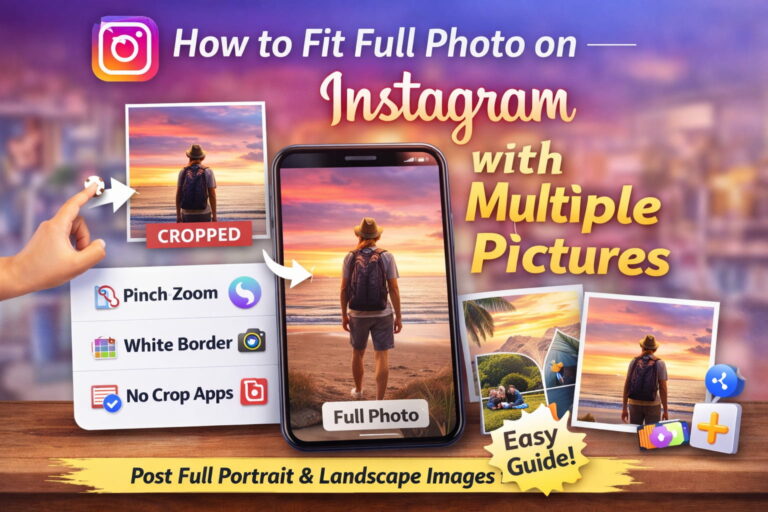
📸 HOW TO FIT FULL PHOTO ON INSTAGRAM (WITHOUT CROPPING) – COMPLETE STEP-BY-STEP GUIDE 2026
How to Fit Full Photo on Instagram: Have you ever tried posting a full photo on Instagram, but it automatically gets cropped?
👉 The top of your head gets cut off
👉 Important background details disappear
👉 Landscape photos turn into squares
👉 Vertical images don’t fit properly
Frustrating, right? 😩
Don’t worry. In this complete guide, you’ll learn simple, practical, and 100% working methods to fit a full photo on Instagram without cropping.
Let’s fix this once and for all 🚀
🤔 WHY DOES INSTAGRAM CROP YOUR PHOTOS?
Instagram only supports specific aspect ratios for feed posts.
Allowed Instagram Feed Ratios:
- Square – 1:1
- Portrait – 4:5
- Landscape – 1.91:1
If your image doesn’t match these ratios, Instagram automatically crops it.
Examples of Images That Get Cropped:
- Full vertical DSLR photos (9:16)
- Mobile wallpaper images
- Ultra-wide landscape photos
If uploaded directly, Instagram trims the edges.
🎯 YOUR GOAL: POST FULL PHOTO WITHOUT LOSING ANY PART
There are three main solutions:
1️⃣ Resize the image
2️⃣ Add background borders
3️⃣ Use editing apps
Let’s explore each method clearly.
🟣 METHOD 1: USE INSTAGRAM’S BUILT-IN RESIZE OPTION (EASIEST METHOD) 📱
Many users don’t realize Instagram already provides a quick resizing option.
Steps:
- Open Instagram
- Tap the “+” button
- Select your photo
- Use two fingers to pinch inward
- The image zooms out
Instagram automatically adds white space around the image so the full photo becomes visible.
Limitations:
- Works only within supported ratio limits
- Extremely tall photos may still get cropped
This method is quick but not perfect for every image.
🟢 METHOD 2: ADD WHITE BACKGROUND (NO CROP TRICK) 🤍
This is one of the most popular and professional methods.
Instead of cropping your image, you keep it original and add white borders around it.
Why This Works:
✔ Your full image remains untouched
✔ Nothing gets cut off
✔ Clean and professional look
📌 USE CANVA (FREE AND EASY)
Tool: Canva
Steps:
- Open Canva
- Create a new design
- Select “Instagram Post” (1080×1080)
- Upload your photo
- Resize and center it
- Keep the background white
- Download and upload
Done ✅
This method is highly recommended for creators and businesses.
🔵 METHOD 3: USE “NO CROP” EDITING APPS 📲
There are many mobile apps designed specifically to prevent cropping.
Popular options include:
- No Crop
- InShot
- Square Fit
How to Use InShot:
- Install the app
- Select your image
- Tap “Canvas”
- Choose 1:1 or 4:5 ratio
- Adjust background color or blur
- Export in high quality
Fast and beginner-friendly 🔥
🟡 METHOD 4: USE BLUR BACKGROUND FOR A TRENDY LOOK ✨
Instead of white borders, you can use a blurred version of your photo as the background.
This creates a modern influencer-style appearance.
Apps that help:
- PicsArt
- Snapseed
Benefits:
✔ Stylish appearance
✔ Full image visible
✔ Professional aesthetic
📐 BEST INSTAGRAM PHOTO SIZES (UPDATED FOR 2026)
To avoid cropping completely, use these dimensions:
📌 Square Post
1080 x 1080 pixels
📌 Portrait Post (Best for Reach)
1080 x 1350 pixels (4:5 ratio)
📌 Landscape Post
1080 x 566 pixels
📌 Story Size
1080 x 1920 pixels
If possible, convert your image into 4:5 ratio for maximum feed space.
📈 WHY 4:5 RATIO IS BEST FOR ENGAGEMENT
Portrait posts (4:5) take up more vertical screen space.
More space =
More visibility =
More attention =
More engagement ❤️
This is why many creators prefer 4:5 posts over square images.
🎨 HOW PROFESSIONAL CREATORS MAINTAIN CLEAN FEEDS
Top influencers and brands follow these strategies:
✔ Use consistent borders
✔ Maintain the same background color
✔ Keep minimal design
✔ Use uniform photo style
Consistency builds brand identity and trust.
🚫 COMMON MISTAKES TO AVOID
Avoid these errors:
❌ Uploading low-resolution screenshots
❌ Using wrong aspect ratios
❌ Over-zooming images
❌ Over-editing colors
❌ Exporting in low quality
Always upload images with at least 1080px width.
💡 ADVANCED TRICK: CAROUSEL SPLIT METHOD
If your image is extremely tall (9:16):
👉 Split it into two parts
👉 Upload as a carousel post
This creates a seamless scrolling effect while keeping the full image intact.
Canva makes this easy with grid templates.
🏆 WHICH METHOD SHOULD YOU USE?
If you want:
👉 Quick solution → Use Instagram pinch zoom
👉 Professional branding → Use Canva
👉 Trendy aesthetic → Use blur background
👉 Fast mobile edit → Use InShot
For most users, Canva provides the cleanest result.
📊 BONUS TIP: IMPROVE REACH WHEN POSTING FULL PHOTOS
To maximize engagement:
✔ Write strong captions
✔ Use 5–10 relevant hashtags
✔ Post at peak times
✔ Add location tag
✔ Use alt text feature
The alt text option in Instagram improves accessibility and discoverability.
❓ FREQUENTLY ASKED QUESTIONS
Q1: Can I upload a full vertical photo without cropping?
Yes, by resizing or adding borders before posting.
Q2: Does Instagram reduce image quality?
Yes, if the resolution is too low. Always upload high-resolution images.
Q3: Which app is best for beginners?
Canva for design, InShot for quick editing, Snapseed for blur effects.
Q4: Do white borders reduce engagement?
No. Quality content matters more than borders.
🎯 FINAL CONCLUSION
Now you know:
✔ Why Instagram crops photos
✔ How to fit full photo on Instagram
✔ The best image sizes
✔ Apps that help prevent cropping
✔ Pro strategies for better engagement
From now on, your photos will never lose important details again 😎